A cache can save time or contain downloads you rely on. Identify its owner and purpose before removing anything.
By MacMonitor · Published · Updated · macOS 26; app requires macOS 14 or later
Short answer: clear a specific cache for a specific reason, preferably through its app's settings. Do not empty the entire Library or delete every folder called cache. Keep a backup, quit the app, and check whether it stores offline content there.
Use browser controls and select cached files carefully. Cookies, saved passwords and history are separate choices.
App cache
Check the developer's instructions. Some downloads and offline assets may need to be fetched again.
Build cache
Stop builds first. See the DerivedData guide; rebuilding consumes time and may require dependencies.
System-managed cache
Leave it to macOS unless an official troubleshooting procedure directs otherwise.
A targeted procedure
Confirm the symptom or storage need. A large cache may be doing useful work.
Open the app's storage or cache settings and inspect the removal options.
Save documents and stop background jobs. Follow the app's instructions about quitting.
If manual removal is documented, inspect only that app's verified cache location. Move selected files to Trash where possible.
Reopen the app, test normal work, and check offline availability before emptying the Trash.
Why caches return
Caches retain work that apps would otherwise repeat. Clearing one can temporarily increase downloads or slow the next launch. Frequent growth is a reason to inspect the responsible app, not to schedule broad deletion.
Not interchangeable:~/Library/Caches, ~/Library/Application Support and Group Containers serve different purposes. A database or an offline project is not disposable because it lives in Library.
Start with the symptom, not the folder name
Cache cleanup can make sense when a specific application’s documentation recommends it for a known problem or when you have identified replaceable data occupying needed storage. It is less useful as a ritual performed whenever the Mac feels slow. First describe the problem: an out-of-date webpage, a failed build, a large offline download, or a startup disk that lacks room.
Those cases call for different decisions. Refreshing one application’s cached content can be reasonable, while removing its entire support directory can destroy settings or documents. A folder called cache is a clue to investigate, not a guarantee that every file in it is unnecessary to your current workflow.
Browser cache, cookies and site data are different choices
Browser settings often put several types of browsing data into one dialog. Read the selected categories before confirming. Cached page resources, browsing history, cookies and saved credentials have different consequences. Choosing a broad reset when you only wanted a refreshed page can sign you out or remove information you intended to keep.
Use the browser’s current help for the exact version you run. If a single site is misbehaving, investigate that site’s data or extensions before clearing every profile. Save work in web applications first, particularly when a page contains an unsent message or an unsaved form.
App caches may contain material you rely on offline
A media application, map, document reader or development tool can retain downloaded material to avoid fetching it again. It may be reproducible in principle while still being valuable before a trip or deadline. Check the application’s storage settings and make sure you understand whether the cleanup removes offline access.
For example, imagine a reader with documents downloaded for a flight. This is an illustrative scenario. Removing replaceable downloads may free storage, but it also defeats the purpose of preparing for offline work. A better decision is to review individual downloads and retain the material needed for that trip.
A real cache-review capture and its limits
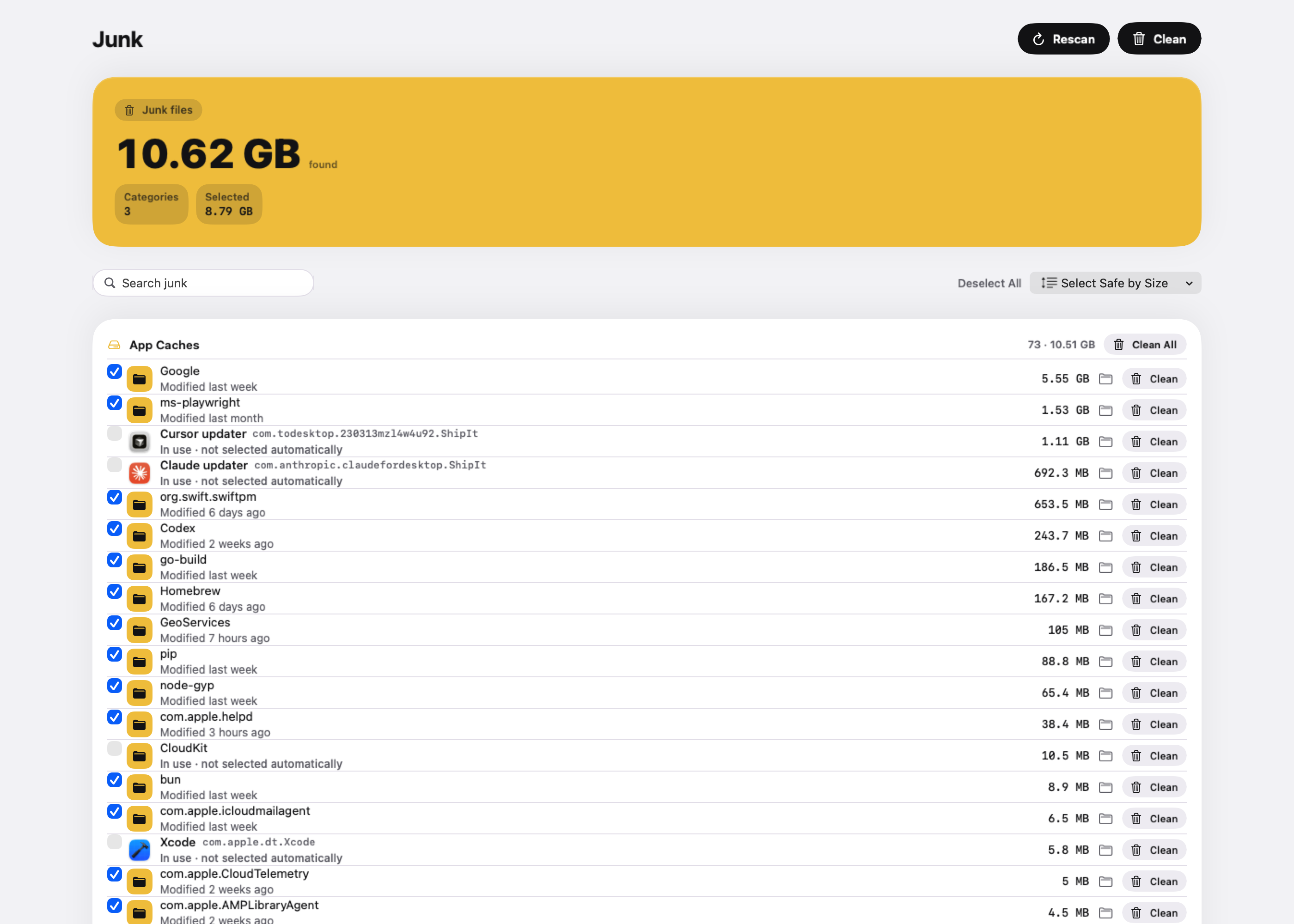
The native Cleaner image on this page was captured on November 4, 2026, using a MacBook Pro M4 Pro with 48 GB RAM, macOS 26.6.2 and an installed MacMonitor debug build reporting 1.0.0. The Junk view displayed 10.62 GB found and 8.79 GB selected. It also showed some running-app caches as not automatically selected.
No Clean action was taken during that capture. The figures describe candidates visible in one development-build scan, not typical savings or storage proven to be reclaimed. The example is useful for seeing the review stage and the distinction between found and selected data; it is not a performance comparison or a completed cleanup benchmark.
Test a targeted cleanup before removing recovery options
Write down the app, its version and the problem you want to solve.
Check its documented cache controls and any warning about downloads or rebuilds.
Save work and stop the affected task before following the supported procedure.
Choose only the category or verified location relevant to that problem.
Reopen the app and test the original task before permanently emptying any Trash items.
If the problem remains, record that result. Repeating the same removal or expanding it into unknown folders is not automatically the next step. You may be dealing with an extension, a network issue, a damaged document or another cause unrelated to the cache.
Understand the cost of regenerating data
A cache saves repeated work. Clearing it can make the next launch, build or download take longer even when the removal itself was appropriate. If the data immediately returns during ordinary use, that may simply mean the application recreated something useful.
For a recurring growth problem, inspect which application and task produce it. Keep the comparison specific: a cache that grows during a video export is different from a directory filling repeatedly because a download fails and restarts. A small log of the task and change is more useful than a daily broad deletion schedule.
Keep system-managed storage separate
Do not treat swap, operating-system files, Application Support databases and Time Machine snapshots as interchangeable caches. Each serves a different purpose and may have a different supported management route. If your real concern is the System Data category, use the System Data investigation to identify its contributors.
Likewise, do not disable macOS protections simply to reach another directory with cache in its name. A supported app-level procedure and an understood user-owned location are much better starting points than a privileged command that removes an entire system tree.
Questions about clearing Mac caches
Is it safe to clear cache on Mac?
Sometimes, when you have identified a specific replaceable cache and understand the consequence. Use the app’s controls or documented procedure. There is no blanket assurance that every cache directory can be emptied without affecting useful work.
How often should I clear caches?
Use a reason rather than a fixed schedule. A documented troubleshooting step or an understood storage constraint is a reason. Merely wanting a smaller cache number is not enough to justify repeatedly discarding reusable data.
Can cache cleanup replace a backup?
No. Recovery from Trash can be convenient, but it is not an independent copy of your work. Back up important documents and project state before a broad maintenance task, especially when an application mixes downloaded data with user-created content.
What should I do if an app asks to download data again?
First establish whether the cleanup removed an offline download or reusable working data that the app normally recreates. If so, use the application’s supported download controls and confirm that the required material becomes available again. If important user-created content is missing, stop further cleanup and inspect the available recovery route. Do not keep clearing additional folders in the hope that the data will return. Note the selected category and original path so you can explain the action accurately if support is needed.
Review supported cache candidates
The MacMonitor Cleaner shows supported categories, paths and sizes. In-use caches are not preselected. Review every choice; a Trash move still occupies storage until you empty it, and permanent actions have separate consequences.
MacBook Pro M4 Pro, 48 GB RAM; macOS 26.6.2; MacMonitor debug 1.0.0; November 4, 2026. Read-only Junk scan: 10.62 GB found and 8.79 GB selected in this capture. Nothing was cleaned or deleted. These are candidate sizes, not measured reclaimed storage or a typical result.