Organize your Downloads folder. And keep it that way.
Downloads is where most Macs get messy first. A few minutes of sorting, and one habit, keep it under control.
By MacMonitor · Published · Updated · macOS 26; app requires macOS 14 or later
Short answer: sort Downloads by Kind in Finder (View → Use Groups, then Group By Kind), move each kind into its own folder, delete old installers, and keep a short-lived "Inbox" habit. For assisted sorting, use an organizer that previews every move and waits for your approval.
Open Downloads and choose View → Use Groups, then View → Group By → Kind. Images, documents, disk images and archives separate instantly.
Delete disk images (.dmg) and installers (.pkg) for apps you already installed.
Extract or delete archives (.zip) you have already opened.
Create folders such as Documents, Images, Videos and Archives and move each group into its folder.
Save a Smart Folder (⌘F, then Kind and Last opened date) to find files you have not opened in months.
Keep it organized
Treat Downloads as an inbox: anything you want to keep moves to a proper folder within a week.
In Safari, Chrome or Firefox settings you can ask each time where to save a file.
Right-click the Downloads stack in the Dock and choose to sort by Date Added so the newest file is always on top.
Choose a folder structure you can maintain
A useful Downloads structure reflects what happens after a download arrives. If most items are temporary installers, a small Installers folder and a review habit may be enough. If Downloads is part of a work intake process, you may need an Inbox plus a clear route into project folders. Creating dozens of categories can make filing harder than the original mess.
Start with a few understandable destinations and keep names ordinary. Documents, Images and Archives describe file types; a project folder describes purpose. Neither approach is universally better. The important question is whether you will know where to look when you need the file again.
Sorting changes the view; moving changes the path
Finder grouping can make a crowded folder easier to scan without moving its contents. A Smart Folder is a saved search rather than a new physical home for the matching files. These are good low-impact starting points when you mainly want to see what has accumulated.
Moving files into subfolders changes their paths. That can matter for a project that links to a downloaded asset, an automation that expects a particular location, or a file you have shared with another person. Before reorganizing a working project, check how its application finds associated files.
A documented native preview
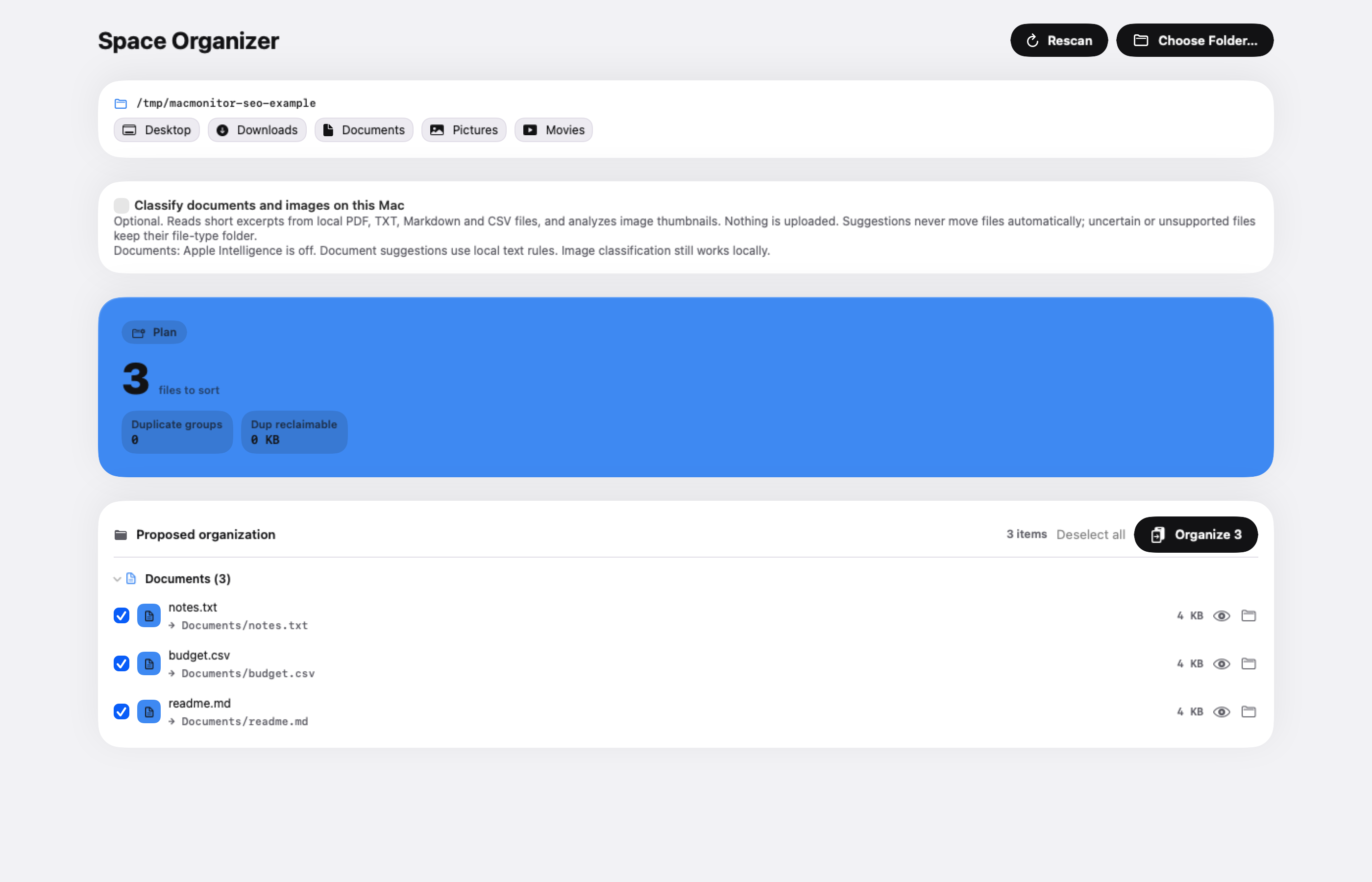
The Organizer screenshot used with this guide was captured on a MacBook Pro M4 Pro with 48 GB RAM, running macOS 26.6.2 and an installed MacMonitor debug build reporting version 1.0.0. The capture was made on November 4, 2026. It used three temporary example files: notes.txt, budget.csv and readme.md.
The native app proposed moving those files into Documents. Classification was off, and no moves were applied. This demonstrates the preview stage of a real app with a controlled folder. It does not demonstrate successful completed organization, undo after later edits, or storage reclaimed. The figure’s caption preserves those limits.
Work through a Downloads cleanup in passes
Identify active work. Leave documents or assets used by an open project alone until you understand their dependencies.
Review completed downloads. Confirm that an installer is no longer needed or that an archive’s contents were preserved before removing it.
Choose destinations. Use a small set of folders that matches how you retrieve files.
Inspect proposed moves. Check both the destination directory and the filename, especially when names already exist.
Apply a small batch. Open a few important files from their new locations before continuing.
A small first batch is useful even if the folder contains hundreds of files. It lets you check the structure while changes are easy to explain. If the destinations feel wrong after ten files, revise the plan before applying it to everything.
Handle filename conflicts without losing a version
Two files named invoice.pdf can contain different documents. Conversely, invoice (1).pdf can be an identical download. A name collision is a path problem, while a duplicate-content match is a separate question. Do not resolve a collision by overwriting whichever file happens to be there.
Review the proposed numbered name or choose a different destination. Open important documents if you are unsure which version you need. For exact duplicate cleanup, use a content comparison and retain a known copy; the duplicate-files guide explains that decision separately.
Understand what undo can and cannot mean
An organization tool may be able to reverse moves it recorded, but later changes can complicate the reversal. A file can be edited, renamed, removed, or replaced by another file at the original path. Read any reported failure rather than assuming that one Undo click restored every item.
MacMonitor describes undo for the last organization during the session and checks before overwriting. That is useful convenience, but it is not an independent backup of your documents. Keep important files backed up before a broad folder reorganization, especially when other apps or people are using the same location.
Keep future downloads from recreating the same problem
Choose a light routine that you will actually follow. You might review the folder when a project closes, after installing new software, or once a week. The useful part is a decision about what stays, not a promise to keep the folder permanently empty.
If you ask the browser where to save each file, choose a location intentionally rather than accepting Downloads automatically. If you prefer a single Inbox, make sure you have a reliable next step for moving retained files into their long-term home. An unused organizational system is simply another layer of folders.
Questions about organizing Downloads
Will organizing files free disk space?
Moving files between folders on the same disk is organization, not cleanup. Space changes when you remove data or move it to another storage device and deliberately remove the original. Keep those actions separate so you know what produced a storage change.
Can I automate the folder continuously?
Some tools offer background rules, but MacMonitor’s described workflow is preview and approval. It does not promise continuous folder watching or scheduled moves. Choose a tool based on the behavior you actually need.
Should every download go into a type folder?
Not necessarily. A project’s image, document and spreadsheet may be easier to retrieve together in its project folder. Type folders are a practical starting point for mixed intake, not a requirement to split every related set of files apart.
How should I handle an archive I already extracted?
Check what the archive represents before deleting it. It may be a replaceable download, a delivered package you want to retain unchanged, or the only portable copy of a project. Opening the extracted folder does not prove that every file was preserved or that an application can use it from the new location.
Keep the archive until you have checked the important contents and know where the recovery copy lives. If you choose to remove it, treat that as a cleanup decision alongside the organization, not as an automatic consequence of moving its extracted files. Separating those choices makes it clear why the folder became tidier and whether disk space actually changed.
With MacMonitor
The Organizer sorts Downloads or any folder into Documents, Images, Videos, Audio, Archives and Installers. You see every move and every name clash before anything moves, it never touches subfolders you already organized, and you can undo the last run. Optional on-device classification suggests better folders for documents and images; nothing is uploaded. How the Organizer works.
MacBook Pro M4 Pro, 48 GB RAM; macOS 26.6.2; MacMonitor debug 1.0.0; November 4, 2026. Read-only preview of three temporary example files. No files were moved; classification was off. This demonstrates the preview, not completed organization or reclaimed storage.